Taggin' MP3 v1.5.0 Help
by Justin Pasher
Lazor Software
March 17, 2011
Lazor Software or any of its members will not be held responsible for any damage
caused by this program, either accidental or intentional, that leads to loss of data
or revenue. Lazor Software will not be held responsible for any damage caused to your
MP3 files, including accidental or intentional file renaming or ID3 editing/deleting.
For what it's worth, you can consider this program for educational and entertainment
purposes only. I can tell you that I have used this program on thousands of MP3 files
with no problems.
Taggin' MP3 is a program that allows you to manipulate ID3 (v1.1 and v2.3.0)
tags for MP3. This includes adding, editing, deleting, and even renaming files
based on those ID3 tags. It even allows the importation of artist, title, album,
and comments based on filenames for files without ID3 tags.
Before you begin using Taggin' MP3, read the Disclaimer!
With the many different programs out there to manage your MP3s, one may ask the
question, "Why should I choose Taggin' MP3?" There are a few advantages to using
Taggin' MP3 over the competitors:
- Fast
- Taggin' MP3 was designed with speed in mind. For example, if you have a batch
of 100 MP3s, all with correct ID3 tags but bad filenames, you can rename all
of the files in a uniform fashion in seconds. Many of the other programs out
there are so overrun with options that it makes it very difficult to try and
do something very simple.
- Easy to use
- It is true that Taggin' MP3 might have a SLIGHTLY larger learning curve in
comparison to other ID3 managers. However, once you get the hang of using
the program (which just takes a little experimenting and playing), you can
EASILY fix up all of your MP3s quickly and efficiently.
- Free!
- What can I say? It's FREE! If you don't like it, you don't have to use it.
You lose NOTHING by just trying the program out. If you do like it, you have
a nice ID3 tag manager that didn't cost you a penny (except the download time
:)
Taggin' MP3 does have its limitations. Here are a few of the things that
the current version of Taggin' MP3 does NOT do or support:
- Limited Unicode support. Taggin' MP3 will TRY to decode Unicode tags.
However, if the Unicode information is actually stored in a different
language, then it probably won't be intepreted correctly.
- Compressed tags are not supported.
- Encrypted tags are not supported.
- Only the standard tags are currently editable. The ability to edit many
more tags will eventually be added.
Please see the Changelog for details.
Visit Lazor Software on the web at http://come.to/lazor.software/. Any and all
suggestions, comments, bug reports, feature requests, etc are welcome! Send an email
to tagginmp3@lazorsoftware.com to get
in touch with me.
Before you can beging editing your ID3 tags, you will need to choose the
files you wish to edit. There are a few different ways to select files.
From the main window, you can select files either by clicking File -> Add Files
or clicking the first icon on the toolbar. Upon doing so, the "picker" window will open up.
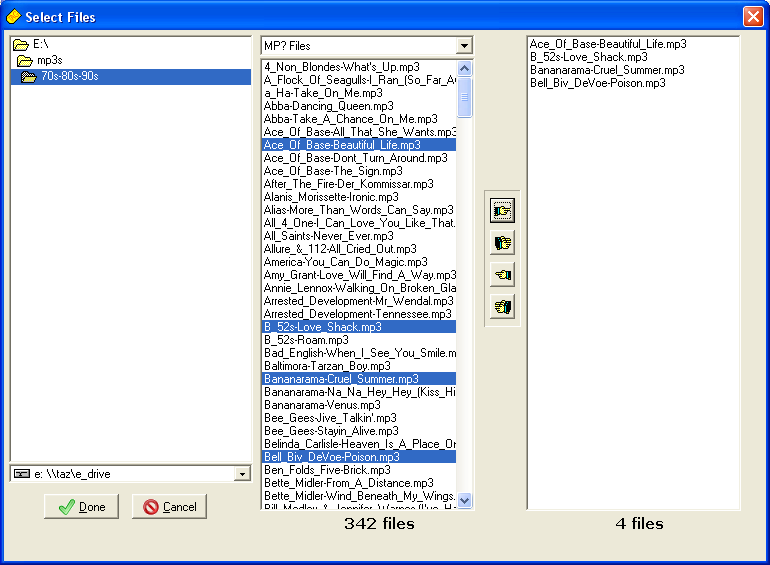
You can select a specific drive/directory from the left box (the directory box). You
can select the MP3 files from the middle box (the MP3 box). Your selected files will
appear in the right box (the "selected" box).
The following buttons are available:
 |
This button adds the file(s) selected in the MP3 box to the "selected" box. |
 |
This button adds ALL of the files in the MP3 box to the "selected" box. |
 |
This button removes the file(s) selected in the "selected" box. |
 |
This button removes ALL of the files in the "selected" box. |
Another way of selecting files is by using the Add Directory feature (by click
on File -> Add Directory or clicking on the Add Directory toolbar icon).
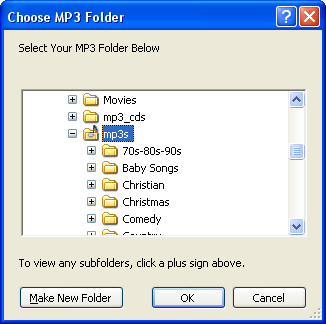
From this window, you can pick a directory which will be recursively scanned for
MP? files, which will in turn be added to the main window.
One final way to add files is by dragging and dropping the files onto the Taggin' MP3
window from another program, such as Windows Explorer. You can choose to drop individual
files or an entire directory. Only MP3 files will be added to the list. Directories will
be searched recursively. If a directory contains a large amount of files, this operation
can take a while.
The main window is the heart of Taggin' MP3. This is where you will add, edit, and
delete ID3 tags. You can also rename files based on their respective ID3 tags. Here
is a sample screenshot:
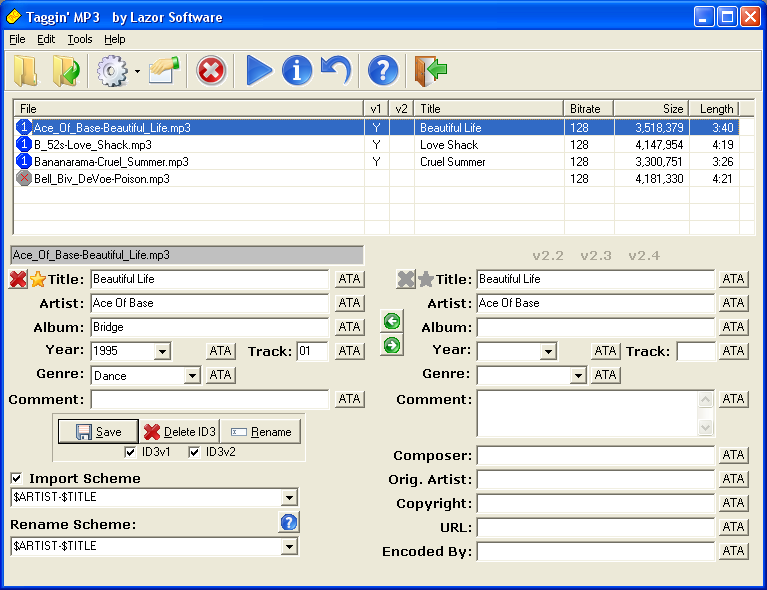
Each file in the top box (the MP3 List box) has a picture next to it.
 |
The file does not have a (valid) ID3 tag. |
 |
The file has a valid ID3v1 tag. |
 |
The file has a valid ID3v2 tag. |
 |
The file has BOTH a valid ID3v1 and
ID3v2 tag. |
Most of the operations of Taggin' MP3 are pretty simple. The
Options button is defined below.
- * Selecting MP3(s) *
-
To select an MP3 to edit, simply click on the filename in the left box once.
If you wish to selected multiple MP3s (for the purpose of using the "Apply to All"
buttons or batch renaming/saving), hold down the CTRL key while clicking. You can
select a range of MP3s by holding the shift key, then clicking the first choice
followed by the last choice. If you press CTRL+A, all files in the list will be
selected.
- * To enabed/disable ID3 editing *
-
Below the buttons, you will see two check boxes for ID3v1 and ID3v2. These
boxes will enable or disable the ID3v1 or ID3v2 editing. When editing is
disabled, the tag information is not changed when saving, deleting or
renaming MP3s. The data is also not imported when an MP3 does not have an
ID3 tag. These check boxes do not affect the "quick-delete" buttons next to
the ID3v1 and ID3v2 tags.
- * To edit the existing ID3 tag of an MP3 *
-
Select the MP3 from the list. It will automatically load the information into
the appropriate boxes. If no ID3 tag exists and "Import Scheme"
is checked, it will be imported based on the import box (if ID3 editing is
enabled). See Import Schemes for more details. If you
wish to save the current MP3's ID3 tag, you must either click Save or hit the
Enter key. If you simply select another MP3 from the list, it will NOT save
the ID3 tag!
- * To delete the ID3 tag of an MP3 *
-
There are two ways to delete an ID3 tag. The classic way is to select the MP3
from the list (multiple files can be selected) and click the "Delete ID3"
button. The ID3 tags that will be deleted are determined by the ID3 editing
checkboxes (for example, if ID3v1 editing is checked, the ID3v1 tag is deleted).
The new way is to use the "quick-delete" button (the red X next to the ID3 tag).
This allows you to delete the ID3v1 or ID3v2 individually without having to
enable or disable ID3 editing. Once the ID3 tag has been deleted, it cannot
be recovered!
- * The "Apply to All" buttons *
-
Each field has an "Apply To All" or "ATA" button. This button will allow you to
apply the current value for the corresponding field to ALL of the MP3s that are
selected in the list. If no ID3 tag exists for a particular MP3, it will be
created. If Import Scheme is checked, the other fields will be filled
in with data based on the Import Scheme pattern. If Import Scheme is
NOT checked, they will be filled with blank values.
- * To rename the filename of an MP3 *
-
If you click the Rename button, it will rename the filename(s) of ALL MP3s that
are selected. If only one is selected, it will rename that one file
based on the current information in the descriptor fields. The values to use
when generating the filename are based on which ID3 editing is enabled (ID3v2
takes precendence over ID3v1 if both are checked). See
Rename Schemes for more details.
- * To UNDO the renaming of an MP3 *
-
Taggin' MP3 has a VERY powerful feature that allows you to
restore the original filename of ANY file that you choose. This works great if you
batch rename MANY MP3s at once and the resulting filename is not what you wanted.
Simply select the files in the list, then click on Tools -> Undo Rename
or click the toolbar icon.
NOTE: Once you clear the MP3 list or close the program, the changes
will become permanent!
- * To play an MP3 *
-
If you double-click on an MP3 in the list box, it will execute the play the file,
using your default MP3 player. You must only have ONE file selected to do this.
- * To copy ID3v1 tags to ID3v2 tags and vice versa *
-
There are two ways to copy the ID3v1 tag to the ID3v2 tag (or copy the ID3v2 tag to
the ID3v1 tag). For the currently loaded MP3 file, you can click the green arrow
inbetween the tag info. The left arrow will copy FROM the ID3v2 tag TO the ID3v2. The
right arrow will copy FROM the ID3v1 tag TO the ID3v2 tag.
To copy the tags for multiple MP3 files, simply highlight the corresponding files,
then right click on the file list. You should see the following popup:

Choose the entry that corresponds to the operation you would like to accomplish.
Options
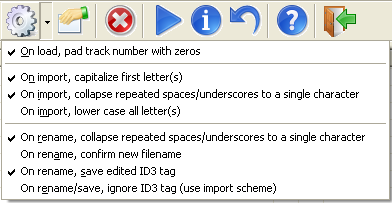
The Options button allows you to change the way Taggin' MP3 does certain operations.
When you click the down arrow on the toolbar, you will get a list of the "quick
options." If you click on Tools -> Options or the toolbar icon, you
will get a few more options. Here are the "quick options."
- On load, pad track number with leading zeros:
- This will case the program to append a leading zeros for MP3s which have a track
defined as 1 through 9. This is useful for those that use the track number in the
filename, but wants a two-digit track number regardless of the actual track number.
For example, instead of showing the track as "1", it will show "01".
- On import, capitalize first letter(s):
- If an MP3 does not have an ID3 tag and "Import Scheme" is selected, the first letter
of each "word" will be capitalized before importing the text into the individual
descriptor fields.
- On import, collapse repeated spaces/underscores to a single character:
- If an MP3 does not have an ID3 tag and "Import Scheme" is selected, any occurrance
of multiple, consecutive spaces or underscores will be reduced to a single space or
underscore, respectively, before importing the text into the individual
descriptor fields.
- On import, lower case all letter(s):
- If an MP3 does not have an ID3 tag and "Import Scheme" is selected, all of the imported
text will be converted to lower case before being imported into the individual
descriptor fields.
- On rename, collapse repeated spaces/underscores to a single character:
- When renaming one or more MP3 files (based on their ID3 tag information), any occurrance
of multiple, consecutive spaces or underscores will be reduced to a single space or
underscore, respectively, in the generates filename.
- On rename, confirm new filename
- When renaming one or more MP3 files (based on their ID3 tag information), Taggin'
MP3 will confirm each new filename before it performs the actual rename. This will
help to prevent people renaming files incorrectly by accident.
- On rename, save edited ID3:
- If this option is checked, the ID3 tag for each MP3 that is being renamed will be
saved. This means one of two things will occur: (1) If the MP3 already has an
ID3 tag, it will not be changed. (2) If the MP3 does NOT have an ID3 tag, and
"Import Scheme" is selected, then the ID3 that is generated by the importation scheme
will be saved to the MP3. If "Import Scheme" is not selected, the file will be skipped.
- On rename/save, ignore ID3 tags (use import scheme):
- When batch renaming multiple files, the filename is generated based on the ID3 tag
information for each MP3. If this option is checked, the program will generate it's
own ID3 tag based on the filename and 'Import Scheme,' ignoring an existing ID3
tags. This helps if you have many MP3 files with correct filenames, but the ID3 tags
are incorrect. It saves you a step from first deleting the ID3, THEN renaming based
on the filename. Make sure you read the Advanced Features and
FAQ sections to fully understand this feature!
When batching saving multiple files, the ID3 tags is generated based on the 'Import
Scheme' then saved in the file. It works the same way as when batch renaming,
except the filename is left untouched.
Here are the options available from the options window.
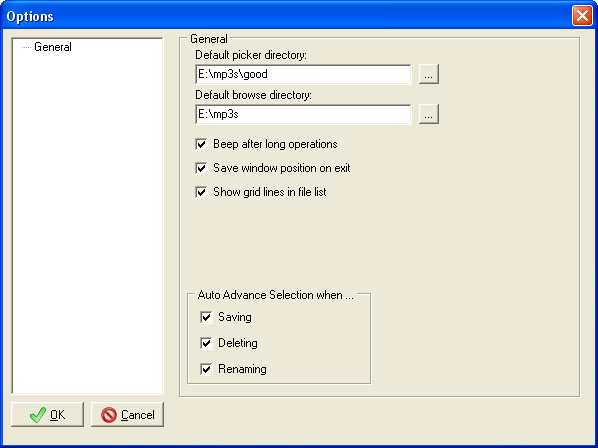
General Category
- Default Picker Directory
- This determines the default directory to select when choosing the "Add Files"
option.
- Default Browse Directory
- This determines the default directory to select when choosing the "Add Directory"
option.
- Beep after long operations
- This will make Taggin' MP3 emit a beep through your speakers when performing
operations with multiple MP3s selected.
- Save window position on exit
- This will make Taggin' MP3 save the window position and size when you exit.
- Show grid lines in file list
- This will make the MP3 file list display grid lines for each table cell.
- Auto Advance Selection when saving
- When you click the Save button, this checkbox determined whether the next MP3
in the list is automatically selected and loaded.
- Auto Advance Selection when deleting
- When you click the Delete ID3 button, this checkbox determined whether the next MP3
in the list is automatically selected and loaded.
- Auto Advance Selection when renaming
- When you click the Rename button, this checkbox determined whether the next MP3
in the list is automatically selected and loaded.
The "Import" feature is on of Taggin' MP3's greatest features. It allows you to create
an ID3 tag for a file "on the fly" simply based on how the file is
named. Here is an example of a common import scheme:
$ALBUM-$ARTIST-$TITLE
This would cause Taggin' MP3 to start reading the filename and stop at the first hyphen.
All text up to, but not including the hyphen, will be put in the "Album" descriptor box. It
would then continue until it reaches the next hyphen. It would use this text for the
"Artist" descriptor box. The rest of the name would be used in the "Title" descriptor box.
It will import all the characters (up to a maximum of 30 for each
descriptor field in ID3v1 tags, except the year, which is 4, and the track,
which is 2).
The following "macros" are available (they can also be seen from within Taggin' MP3 by
clicking the question mark above the rename box). These ARE case sensitive!
| ID3v1 and ID3v2: |
| $TITLE | $ARTIST | $ALBUM |
| $COMMENT | $YEAR | $TRACK |
| ID3v2 Only: |
| $COMPOSER | $ORIGARTIST | $COPYRIGHT |
| $URL | $ENCODEDBY | |
The import scheme also supports multiple delimiter characters in the pattern. For example:
($ARTIST)-$TITLE
This will import the Artist and Title for the MP3 into the appropriate boxes, ignoring
the parenthesis and the hyphen. If you DO use multiple delimiter characters between the macros,
the filename MUST match the pattern in order to properly import the tag information.
I STRONGLY urge you to read the FAQ section before utilizing this
feature. If you do not fully understand how Taggin' MP3 does the importing, you can get
unpredictable results!
The "Rename" feature of Taggin' MP3 is very powerful. It allows you to change the name
of a file based on its ID3 tag. The renaming scheme is very easy to set up. Here is an
example of a common rename scheme:
$ARTIST-$TITLE
This would cause Taggin' MP3 to use the MP3 artist, followed by a hyphen, then the MP3
title. The following "macros" are available (they can also be seen from within Taggin' MP3
by clicking the question mark above the rename box). These ARE case sensitive!
| ID3v1 and ID3v2: |
| $TITLE | $ARTIST | $ALBUM |
| $COMMENT | $YEAR | $TRACK |
| $GENRE | | |
| ID3v2 Only: |
| $COMPOSER | $ORIGARTIST | $COPYRIGHT |
| $URL | $ENCODEDBY | |
You can use any number of characters to separate the macros. Here is another example:
($ARTIST) - $TITLE
This will put the artist name in parenthesis and separate it from the title with two
spaces and a hyphen in between.
Multiple MP3s Selected
Taggin' MP3 has no problem renaming many MP3 files at once. All you have to do is select
the MP3s you wish to rename in the list, click Rename, and Taggin' MP3 will do the rest.
I STRONGLY urge you to read the FAQ section before utilizing this
feature. If you do not fully understand how Taggin' MP3 does the renaming, you can get
unpredictable results!
A new feature added in version 1.3.0 is the File Info button. When you select an
MP3, it will read the selected MP3 file and extract some of the basic attributes about
the file.
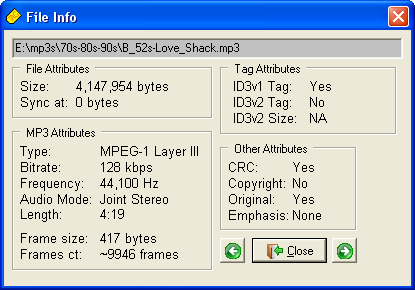
Much of the information is pretty self explanatory. It is similar to the information
reported by WinAmp and other MP3 programs.
A few notes about file info:
- Sync at
- This refers to the start of the MP3 data (i.e. after the ID3v2 tag, if any). If this
number is different from the ID3v2 Size attribute, then the file contains
garbage data between the ID3v2 tag and the start of the MP3.
- Length
- Length gives an estimate of the length of the song. Taggin' MP3 uses a VERY simple
formula to calculate it, which is (frame_count * 26ms) / 1000.
Because of this formula, the song length estimate should be accurate within one
second EXCEPT for VBR (Variable Bit Rate) files. Variable Bit Rate files contain
frames of many different sizes, so there is no 100% accurate formula to calculate their
size except by reading through the entire file. To maximize speed, Taggin' MP3 does
not read the entire file.
- Frame ct
- The Frame Count is also calculated with a very simple formula:
(filesize - id3v2_tag_size - id3v1_tag_size) / frame_size. This will also be inaccurate for
VBR MP3s.
Two new feature added in version 1.3.0 are importing and
renaming filters. This gives the user even MORE control over the
way Taggin' MP3 works!
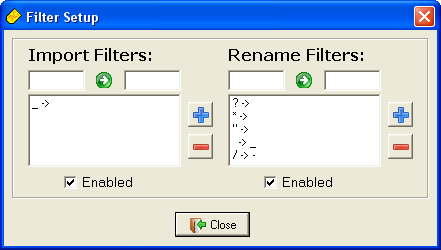
Import Filters
Import filters are applied when ID3 tag information is generated based on the filename.
This works when selecting just one MP3 or batch saving/renaming multiple MP3s. The filters
are in the format
source character -> destination character
At this time, Taggin' MP3 only supports single character mappings. When Taggin' MP3
tries to generate an ID3 tag, it will replace any instances of source character
with destination character. The destination character can be null (empty)
if desired. If this is the case, any instances of source character will be
completely removed. This option can be enabled or disabled by checking or unchecking the
box below the filters box.
To add a new filter, fill in the left box with the source character and the
right box with the destination character, if any. Then click the plus sign button.
To remove filters, select the filter(s) from the list of current filters, then click
the minus sign button.
In the picture above, the underscore (_) character is replaced with the space ( )
character.
Rename Filters
Rename filters work the same way as the Import filters, however they are applied to
the resulting filename when renaming single or multiple files. This makes it much easier
if the ID3 tag for an MP3 contains "invalid filename characters," such as ?, *, /, etc.
In the picture above, the following filters are applied:
- The space ( ) character is replaced with the underscore (_) character.
- The question mark (?) character is replaced with the null (empty) character.
- The forward slash (/) character is replaced with the hyphen (-) character.
- The asterisk (*) character is replaced with the hyphen (-) character.
This is a physical limitation of the ID3 v1.x specification.
The descriptor field lengths were predefined when the standard was developed.
Unfortunately, no room was left as "reserved" space to allow for future expansion
capabilities.
As of version 1.1.8, read only files are handled without any problems. If a file has
the read only attribute set, Taggin' MP3 will first remove the read only attribute (if
possible), save the ID3 tag information, then restore the file attributes. Obviously
this will not work on read only files located on a CD-ROM.
More than likely, you are also entering a track number for these files. In order for
the track number to be saved in the ID3 tag, the comment field must be cut by two
characters, making the maximum comment length 28 characters.
Unfortunately, you can't! When an ID3 tag is deleted, it is physically remove from the
file. There is NO trace of the ID3 information left. However, you MAY be able to restore
the ID3 tag information based on the MP3 filenames and an 'Import Scheme.'
If Taggin' MP3 encounters a file during the multiple file renaming process without
a valid ID3 tag, it will do one of two things: If the "Import Scheme" checkbox is checked,
Taggin' MP3 will import a ID3 based on the Import Scheme defined. Then it will use that
ID3 tag to rename the file. If the "Import Scheme" box is NOT checked, it will simply skip
the file.
NOTE: If an ID3 has to be imported for a file in order to rename it, the ID3 tag
will be saved IF AND ONLY IF the "On rename, save ID3" option is checked, by clicking on the
options button.
This option mainly comes into play when batch renaming many files while importing
the ID3 tags. Here is a rundown on how Taggin' MP3 handles each situation. These
situations assume "On rename, save ID3" is NOT checked.
- One file is selected with or without an ID3 tag
- When you click rename, it will rename the file based on the current information
in the descriptor field boxes. If the ID3 tag information has been altered, you will
be prompted to save it. The filename will then be changed, based on the 'Rename
Scheme.'
- Multiple files are selected with or without ID3 tags
- When you click rename, you will be prompted to save the current ID3 tag information,
if it has changed. As Taggin' MP3 goes through the list of selected files, the file is
renamed based on the 'Rename Scheme'. If the file does not contain an ID3 tag OR the
file contains an ID3 tag and "Ignore ID3" is checked, the ID3 tag is generated based on
the 'Import Scheme,' then the file is renamed based on the 'Rename Scheme.' In either
case, if "On rename, save ID3" is NOT selected, the ID3 tag is NOT written to the
file. If "On rename, save ID3" IS selected, the ID3 is written only if an existing
ID3 tag is not present.
When you have the "On rename/save, ignore ID3 tags (use import scheme)" option checked,
it may seem like Taggin' MP3 does some weird stuff with certain MP3s. Here is a rundown on
how Taggin' MP3 handles each situation. All of these situations assume the "Ignore ID3"
option IS selected.
- One file is selected with or without an ID3 tag (rename)
- When you click Rename, you will be prompted to save the current ID3 tag information,
if it has changed. Taggin' MP3 will import the NEW ID3 information based on the
'Import Scheme' and 'Rename Scheme.'
- Multiple files are selected with or without ID3 tags (rename)
- When you click Rename, you will be prompted to save the current ID3 tag information,
if it has changed. When the renaming process occurs, all ID3 tags are ignored. Once
again, the resulting filename will be created from the 'Import Scheme' and 'Rename
Scheme'.
- One file is selected with or without an ID3 tag (save)
- When you click Save, the current ID3 tag information in the descriptor field
boxes is saved as normal.
- Multiple files are selected with or without ID3 tags (save)
- When you click Save, you will be prompted to save the current ID3 tag information,
if it has changed. When the saving process occurs, the ID3 tag information is generated
for each file based on the 'Import Scheme'. Any existing ID3 tags are ignored. Like the
previous situations, the resulting ID3 tags will be created from the 'Import Scheme'.
If Taggin' MP3 seems to be doing weird stuff when you are renaming one or multiple files,
the most likely cause is having "On rename/save, ignore ID3" selected. When you do so, the
information located in the descriptor field boxes is meaningless, since all information
is generated from the MP3 filename.
As of version 1.3.0, there is an "Undo Rename" feature! This will allow you to
restore the original filename of any of the files you select from the list. Please note
that once you switch from the Namer tab back to the Picker tab, the changes will become
permanent!
With the introduction of Import and Rename filters, this option was redundant. If you
wish to use underscores instead of spaces when you rename files, you will have to set up
a rename filter that maps the space ( ) character to the underscore (_) character.
As of version 1.4.0, Taggin' MP3 is no longer skinnable. I might add this feature
back in a future version, but I currently have no plans of doing so.
Every time you close Taggin' MP3, the options you have selected on the Namer tab
(those on the Options pop-up menu, Import Scheme, and Rename Scheme) along with filters are
saved in the registry. At this time, there is no way to prevent the saving of options.
Unless someone specifically requests it, I don't plan on adding that feature.
- ID3v1
- The official specification for the format of an ID3 tag. It was the first
specification made for storing information in an MP3 file.
- ID3v1.1
- A minor revision to the ID3v1 standard produced the ID3v1.1 standard. The only
difference is the ability to save track numbers in the MP3 file. This is
accomplished by shortening the Comment field to 28 characters (since most comments
are not that long anyway). The two remaining bytes in the comment field are a
NULL character (ASCII 0) and the track number.
- ID3v2
- This is the specification that superceded the ID3v1.1 specification. It added MANY
new features, including virtually unlimited length for each descriptor field and
numerous new fields for storing information in an MP3. Some additional fields are
Composer, Copyright, Composed By, and even lyrics.
- ID3
- An ID3 tag is a 128-byte long segment at the end of an MP3 file. This segment is
used to store the Title of the song, Artist, Album, Year, and genre for the MP3.
An ID3 tag helps better recognize what song a particular MP3 is if the filename is
mangled.
These ID3 tags can also be read by the popular MP3 players to help properly display
the song's Title, Artist, etc.
- Descriptor fields
- The fields pertaining to the ID3 tag information. They are Title, Artist, Album,
Year, Genre, Track, and Title.